en English
Untitled English subtitles
Report a problem
Advertisement
English transcript
Okay, you've got Android Studio up and running.
Awesome work.
Now, you're going to participate in an important programming tradition,
making a hello world app.
This is basically the first step towards becoming an Android developer, and
at the end of the lesson, you're going to take this hello world app, and
you're going to change it into the birthday card app.
SO you might be wondering, what exactly is a hello world program?
Well typically in programming languages,
one of the easiest things you can do is print out some words to the screen.
So therefore,
usually the first program that you'll make in a programming language,
is a program that will do exactly that, print some words out to the screen.
It's kind of like when you're studying a new human language.
How you'll learn words like, thank you, or, please, or excuse me,
where is the bathroom, as sort of your first building blocks of that language.
Okay, let's build the hello world app.
A quick note before we get started.
This video was recorded April 6th, 2015.
Now, my suggestion to you is that you don't follow along with the video.
Instead, go ahead and watch the video through once.
After you're done with that,
we've provided some text instructions in the instructor notes.
>From time to time, Android Studio is updated, which means menus or
screens can look a little bit different.
And while the video might be out of date,
the text instructions will be updated a lot more regularly.
Okay, so if you've closed Android Studio, go ahead and
reopen Android Studio.
You should be staring at this screen.
I'm going to go ahead and
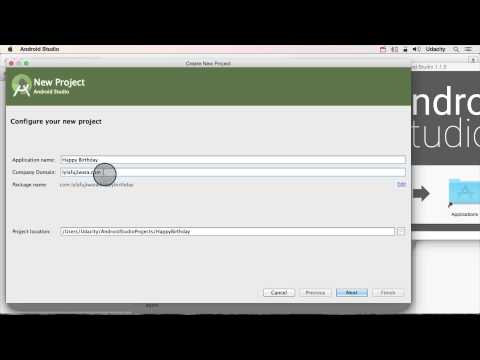
click on this aptly named, Start a new Android Studio project button.
All right. That should take you to this screen,
where we have a couple of different options.
The first one is the application name.
This is the name that you'll see in the app bar at the top of the app.
As well as the all app screen and the device.
Preemptively, I'm going to go ahead and name this, Happy Birthday.
Okay, right below this we have company domain.
And if this looks similar to a web address, you're right.
Normally, if you owned a web address, you'd type it in here.
At one point in my life, I owned LylaFugiwara.com.
So if I was making an app for myself, instead of a demo app for
all of you, I would go ahead and change this to lylafujiwara.com.
Now you might be wondering why.
Well, if I was planning to distribute my app on Google Play,
this package name down here is something that I need to uniquely identify my app.
Meaning that across all of the people in the world who are making apps,
this needs to be completely unique.
Now if we look a little bit more at the structure of this,
the package name is actually the company domain reversed.
So instead of lylafujiwara.com we have com.lylafujiwara,
followed by the application name with no spaces.
So while there might be a couple of different app developers that make
a Happy Birthday app, you're not going to have a bunch of app developers that
all own lylafujiwara.com and they're making a birthday card app.
And the way that the Internet is set up, If I buy lylafujiwara.com,
that means that I should have complete control over what is shown there, and
nobody else can buy that domain name.
And if I own it and it's specific to me,
then that helps insure that the package name is completely unique.
So, I know you only know about package names right now,
you might know what a package is.
We'll talk about that more a little bit later.
But the thing that you just need to keep in mind right now,
is that a package name needs to be unique so that Google Play and
your phone, has a unique way to identify your application.
Okay, but you're not me, and you don't own this domain.
And since we're all practicing together, and
I want us all to have sort of the same setup for this app.
I'm going to change this to android.example.com, and
you should go ahead and use the same company domain name,
because I know that some of you won't actually own website domains yourself.
Also, it'll help you match our code.
And if you look below, you should see that it says com.example.adroid.
Again, that's the reverse of android.example.com.
And that it says happy birthday after it.
Okay, so the next thing that you can change is the project location.
This is where all of the files that have to deal with your app,
will be saved on your computer.
Now usually, Android Studio will create a folder for
your Android Studio projects.
And the default is to just put your app inside this folder.
Now you can see that the name actually
matches the name of the folder that it will be in.
This is a pretty good default location, so unless you have any strong reason to
change it, I'd go ahead and just click Next.
Okay, now this is a fun screen.
It lets us pick what phones and
devices that we are going to actually make our application for.
Now you're making the app for a phone and a tablet, and you're not trying to
make an app for TV, wear or glass, so we are going to leave these all unchecked.
The dropdown right here, shows us the version of the Android operating system
that our application will support.
I'm going to go ahead and scroll up.
You can see that the first public and
widely used release of Android was called Cupcake.
With this release Google started a convention where they would
continue to go alphabetically, but name each operating system off of desserts or
sugary treats.
Cupcake was followed by doughnut and eclair.
And this is why you'll see words like Ice Cream Sandwich,
Honeycomb and KitKat in the drop down menu.
Now below this drop down, you'll see this handy help me choose link.
This graph shows some helpful percentages of how many people who have
Android phones, use the different operating system versions.
Looking at it, we can see that most users,
at least at the time of this recording, are using the deliciously named KitKat.
The percentages show the percentages of people in the world using Google Play,
who will be able to use our app,
if we pick one of these as our minimum supported version.
So if you pick the newest version of the operating system,
which is Lollipop, at least at the time of this recording,
only users with new phones would be able to download your app.
And that would mean that you would only have 0.1% of all of the phone users
actually able to download your app.
So you might be asking, why not make an app for
all phones by picking the oldest version of the operating system?
Here's a picture of the first commercially available Android phone,
the T.Mobile G1,
which is also known outside the United States as the HTC Dream.
It was released in 2008 and ran Android 1.0.
Obviously, a lot has changed since then.
For example, apps like Google Wallet, which lets you pay for groceries with
the wave of your smartphone, require near field communication.
A near field communication, or NFC, was actually a type
of hardware that didn't make it into Android phones until 2010.
So, if you're making an app that requires NFC,
there's no reason to even try supporting older phones like this,
that are running older versions of the android operating system.
Anyway, for the purposes of your app I want you use API 15 which is
Ice Cream Sandwich.
This should work for about 90% of the phone users out there.
All right, go ahead and click Next.
On this screen, you're given a bunch of starting templates you can choose from
depending on what you're trying to make.
You're going to go ahead and
choose Blank Activity, which is already selected, because it's the simplest one,
and I'm going to click Next.
Finally, this screen gives you the opportunity to name a couple of
different files, that'll be automatically generated for
your application.
As you'll soon see, an application is composed of all the picture files,
sound files, XML files, Java files, and more, that are required to make the app.
Basically there are a lot of files that work together to make your application.
We'll talk about this all soon.
For now take a look at the layout name.
You've been working on XML layout files, so
this is the name of the file we'll be editing in just a little bit.
I'm actually not going to change any of these defaults, so you can go ahead and
click finish.
Now depending on your computer speed,
it might take a moment to set everything up.
If you look down here, you'll actually see a little loading circle,
as well as a loading bar.
We can see a loading circle down here as well,
meaning that it's continuing to think about things.
So take a break, go ahead, stretch, and get some tea.
I mean coffee.
Awesome work.
Now, you're going to participate in an important programming tradition,
making a hello world app.
This is basically the first step towards becoming an Android developer, and
at the end of the lesson, you're going to take this hello world app, and
you're going to change it into the birthday card app.
SO you might be wondering, what exactly is a hello world program?
Well typically in programming languages,
one of the easiest things you can do is print out some words to the screen.
So therefore,
usually the first program that you'll make in a programming language,
is a program that will do exactly that, print some words out to the screen.
It's kind of like when you're studying a new human language.
How you'll learn words like, thank you, or, please, or excuse me,
where is the bathroom, as sort of your first building blocks of that language.
Okay, let's build the hello world app.
A quick note before we get started.
This video was recorded April 6th, 2015.
Now, my suggestion to you is that you don't follow along with the video.
Instead, go ahead and watch the video through once.
After you're done with that,
we've provided some text instructions in the instructor notes.
>From time to time, Android Studio is updated, which means menus or
screens can look a little bit different.
And while the video might be out of date,
the text instructions will be updated a lot more regularly.
Okay, so if you've closed Android Studio, go ahead and
reopen Android Studio.
You should be staring at this screen.
I'm going to go ahead and
click on this aptly named, Start a new Android Studio project button.
All right. That should take you to this screen,
where we have a couple of different options.
The first one is the application name.
This is the name that you'll see in the app bar at the top of the app.
As well as the all app screen and the device.
Preemptively, I'm going to go ahead and name this, Happy Birthday.
Okay, right below this we have company domain.
And if this looks similar to a web address, you're right.
Normally, if you owned a web address, you'd type it in here.
At one point in my life, I owned LylaFugiwara.com.
So if I was making an app for myself, instead of a demo app for
all of you, I would go ahead and change this to lylafujiwara.com.
Now you might be wondering why.
Well, if I was planning to distribute my app on Google Play,
this package name down here is something that I need to uniquely identify my app.
Meaning that across all of the people in the world who are making apps,
this needs to be completely unique.
Now if we look a little bit more at the structure of this,
the package name is actually the company domain reversed.
So instead of lylafujiwara.com we have com.lylafujiwara,
followed by the application name with no spaces.
So while there might be a couple of different app developers that make
a Happy Birthday app, you're not going to have a bunch of app developers that
all own lylafujiwara.com and they're making a birthday card app.
And the way that the Internet is set up, If I buy lylafujiwara.com,
that means that I should have complete control over what is shown there, and
nobody else can buy that domain name.
And if I own it and it's specific to me,
then that helps insure that the package name is completely unique.
So, I know you only know about package names right now,
you might know what a package is.
We'll talk about that more a little bit later.
But the thing that you just need to keep in mind right now,
is that a package name needs to be unique so that Google Play and
your phone, has a unique way to identify your application.
Okay, but you're not me, and you don't own this domain.
And since we're all practicing together, and
I want us all to have sort of the same setup for this app.
I'm going to change this to android.example.com, and
you should go ahead and use the same company domain name,
because I know that some of you won't actually own website domains yourself.
Also, it'll help you match our code.
And if you look below, you should see that it says com.example.adroid.
Again, that's the reverse of android.example.com.
And that it says happy birthday after it.
Okay, so the next thing that you can change is the project location.
This is where all of the files that have to deal with your app,
will be saved on your computer.
Now usually, Android Studio will create a folder for
your Android Studio projects.
And the default is to just put your app inside this folder.
Now you can see that the name actually
matches the name of the folder that it will be in.
This is a pretty good default location, so unless you have any strong reason to
change it, I'd go ahead and just click Next.
Okay, now this is a fun screen.
It lets us pick what phones and
devices that we are going to actually make our application for.
Now you're making the app for a phone and a tablet, and you're not trying to
make an app for TV, wear or glass, so we are going to leave these all unchecked.
The dropdown right here, shows us the version of the Android operating system
that our application will support.
I'm going to go ahead and scroll up.
You can see that the first public and
widely used release of Android was called Cupcake.
With this release Google started a convention where they would
continue to go alphabetically, but name each operating system off of desserts or
sugary treats.
Cupcake was followed by doughnut and eclair.
And this is why you'll see words like Ice Cream Sandwich,
Honeycomb and KitKat in the drop down menu.
Now below this drop down, you'll see this handy help me choose link.
This graph shows some helpful percentages of how many people who have
Android phones, use the different operating system versions.
Looking at it, we can see that most users,
at least at the time of this recording, are using the deliciously named KitKat.
The percentages show the percentages of people in the world using Google Play,
who will be able to use our app,
if we pick one of these as our minimum supported version.
So if you pick the newest version of the operating system,
which is Lollipop, at least at the time of this recording,
only users with new phones would be able to download your app.
And that would mean that you would only have 0.1% of all of the phone users
actually able to download your app.
So you might be asking, why not make an app for
all phones by picking the oldest version of the operating system?
Here's a picture of the first commercially available Android phone,
the T.Mobile G1,
which is also known outside the United States as the HTC Dream.
It was released in 2008 and ran Android 1.0.
Obviously, a lot has changed since then.
For example, apps like Google Wallet, which lets you pay for groceries with
the wave of your smartphone, require near field communication.
A near field communication, or NFC, was actually a type
of hardware that didn't make it into Android phones until 2010.
So, if you're making an app that requires NFC,
there's no reason to even try supporting older phones like this,
that are running older versions of the android operating system.
Anyway, for the purposes of your app I want you use API 15 which is
Ice Cream Sandwich.
This should work for about 90% of the phone users out there.
All right, go ahead and click Next.
On this screen, you're given a bunch of starting templates you can choose from
depending on what you're trying to make.
You're going to go ahead and
choose Blank Activity, which is already selected, because it's the simplest one,
and I'm going to click Next.
Finally, this screen gives you the opportunity to name a couple of
different files, that'll be automatically generated for
your application.
As you'll soon see, an application is composed of all the picture files,
sound files, XML files, Java files, and more, that are required to make the app.
Basically there are a lot of files that work together to make your application.
We'll talk about this all soon.
For now take a look at the layout name.
You've been working on XML layout files, so
this is the name of the file we'll be editing in just a little bit.
I'm actually not going to change any of these defaults, so you can go ahead and
click finish.
Now depending on your computer speed,
it might take a moment to set everything up.
If you look down here, you'll actually see a little loading circle,
as well as a loading bar.
We can see a loading circle down here as well,
meaning that it's continuing to think about things.
So take a break, go ahead, stretch, and get some tea.
I mean coffee.