en English
Untitled English subtitles
Report a problem
Advertisement
English transcript
All right, so it's actually the appropriately named textSize
that will make the text larger.
Now maybe you thought it was textStyle.
TextStyle is actually an attribute that's used for
changing text to either bold or italic.
But it doesn't change the size.
You might have been looking at textAlignment,
which does things like puts the text to the left of the view or
the right of the view, or centered in the view.
But it is actually textSize, so once we've determined this,
let's go ahead and make the changes in the code.
All right, here I am, in my code.
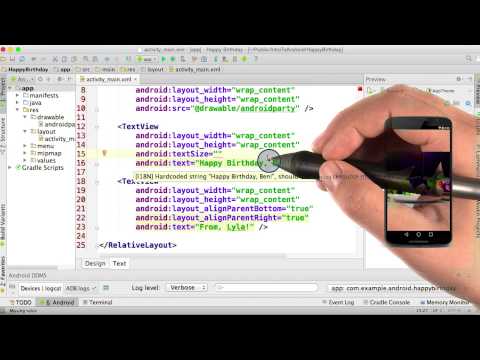
I'm looking at activity main.xml like I always have been and
I'm going to scroll down so I can see my two TextViews.
Okay, So let's go ahead and add the attribute.
Put Android, the name of the attribute equals.
Okay, and now I have to put the value.
And if you remember from the quiz question the value should be 36sp.
As always, remember to have quotes around your value.
And you're going to need android: before the value textSize.
Oh yeah, and don't forget the equals sign.
Once you've done this, you should be able to go over here to the preview
screen and see that the text has actually gotten bigger.
Let's go ahead and make this text larger as well.
Okay, great.
And I've typed my textSize="36sp" here.
And I see that it in fact, updated on the phone.
But, in reality, this isn't your actual phone.
So you should always, always,
always run it on your phone to make sure it looks correct.
To do that, I go up here to the green run button, select my phone and hit OK.
And good work, you've done it.
We no longer have small microtext, we have big and
beautiful 36 sp text displayed on our phone.
And just like that, we can check off text is much larger on our list.